01
Find a self-contained moment
Upload a video or paste a link to a YouTube video you own or have permission to use. Review the suggested clips and choose the story you want to tell.
LONG VIDEOS → YOUTUBE SHORTS
Give a great conversation another audience. Find a moment, turn it vertical, add readable captions, and choose when to share it—all in one workspace.
MP4, MOV, MKV or WebM · landscape, square or upright (9:16) videos
Free plan available. YouTube publishing and scheduling are paid features. See plans and free allowance
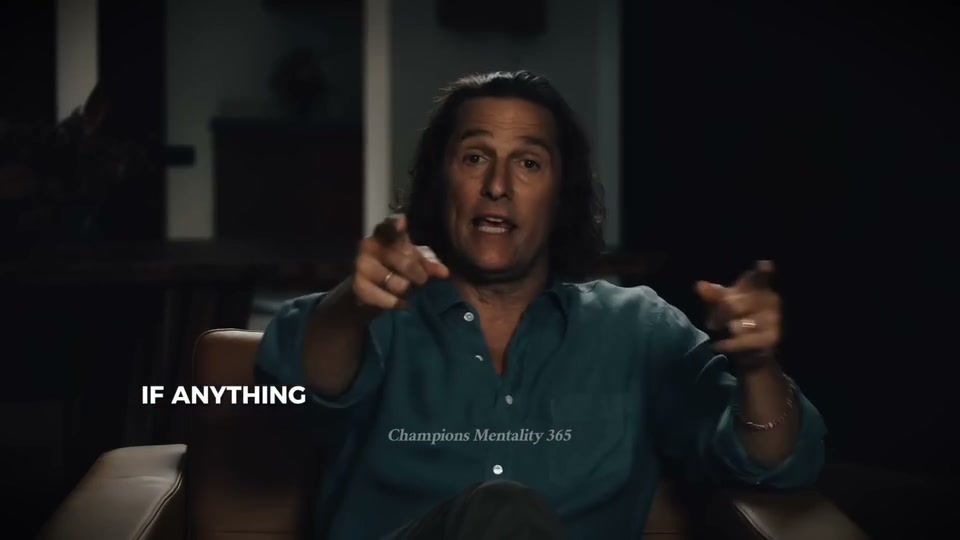
The conversation
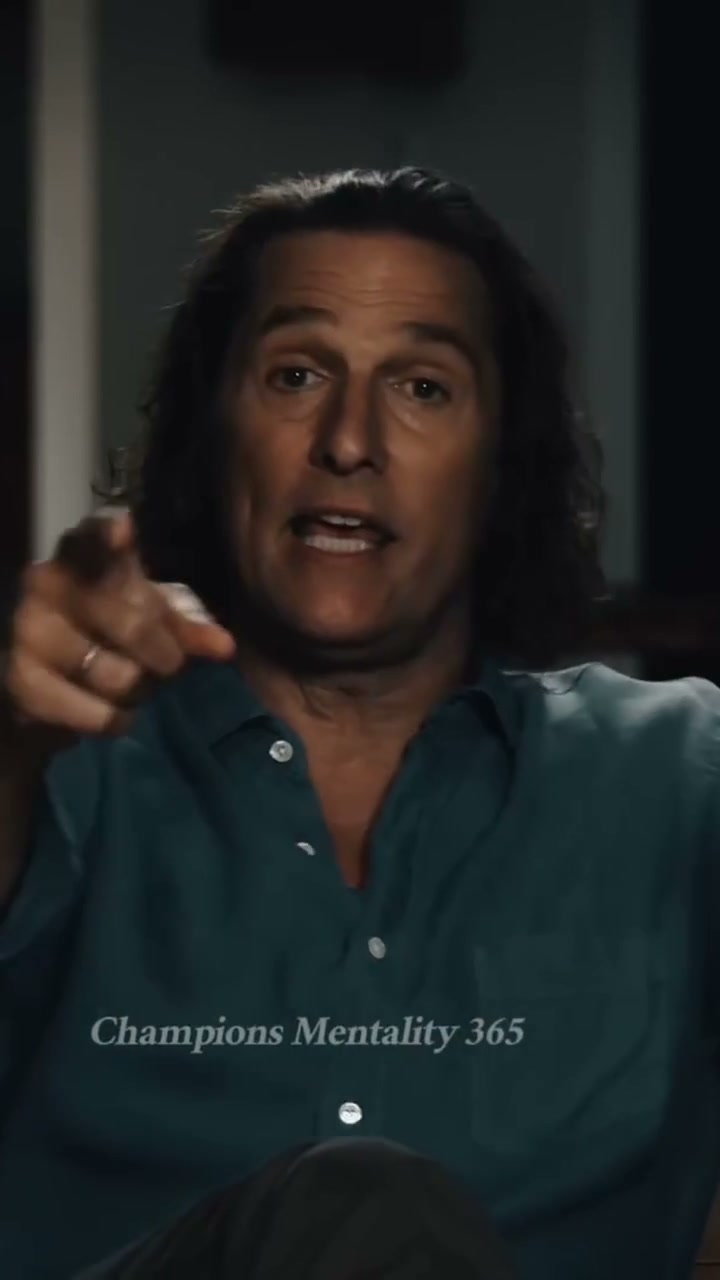
Your vertical clip
01
Upload a video or paste a link to a YouTube video you own or have permission to use. Review the suggested clips and choose the story you want to tell.
02
Speaker-aware reframing creates a 9:16 layout. Use the YouTube Shorts editor to trim the clip, correct captions and adjust framing. Preview the full cut before exporting.
03
Download the finished clip, or connect YouTube on a paid plan. Review the title and description, publish now, or schedule up to 90 days ahead.
Follow the process from importing a recording to reviewing captions, framing and the finished clip.
Check plan requirements, your publishing time zone and how to manage a scheduled post.
Download the finished clip, upload it in YouTube Studio and check its publishing settings.
The length limit, aspect ratio and pixel size for Shorts, and what changes after one minute.
Every clip ClipSnitch makes is vertical 9:16 at 1080 × 1920, and you choose a length up to 3 minutes, so it fits what YouTube treats as a Short. For music rules and file limits, see the full guide.
YouTube Shorts size, length and aspect ratioA long interview or talk often has several moments that stand on their own. Make them in one project, review them side by side and, on a paid plan, schedule them across the week from the content calendar. How the video clipper works
A FINAL CHECK, BEFORE YOU POST
Review the vertical crop before it reaches your audience.
Reuse caption styles and colors from your saved templates.
Plan YouTube posts in your calendar with an eligible paid plan.
Start with an existing video. ClipSnitch suggests moments, reframes them vertically, and prepares captions. Review the clips, make your edits, then download them or use paid YouTube publishing and scheduling.
Yes. Upload a source video or use the supported YouTube-link import. Only use footage you have permission to process and publish.
Yes. It reframes selected clips into 9:16 with speaker-aware tracking. You can review the result and adjust the framing in the editor.
Direct publishing is available on eligible paid plans after connecting your YouTube account. You can also download clips and upload them yourself.
Yes. With an eligible paid plan, schedule YouTube posts up to 90 days ahead and manage them in your workspace calendar.
No. The tool prepares and organizes your clips. Audience interest, the story, and your publishing choices still determine how they perform.
Yes. In the editor's Elements panel, Hook title puts the clip's opening line or its title on screen for the first three seconds, and Progress bar adds a bar along the top or bottom that fills as the clip plays. Both show in the preview and in the exported file.
Choosing your workflow? Compare AI clipping tools before your first project.