01
Start with your recording
Upload a conversation with clear audio and visible speakers. Use footage you have permission to edit and share. Review the suggested moments for a clear opening and a complete thought.
EXISTING RECORDINGS → INSTAGRAM REELS
Turn a podcast, interview or lesson into a captioned vertical clip for Instagram. ClipSnitch finds potential highlights and follows the speaker; you review the edit and download the Reel to upload yourself.
MP4, MOV, MKV or WebM · landscape, square or upright (9:16) videos
Free plan available. YouTube publishing and scheduling are paid features. See plans and free allowance
The conversation
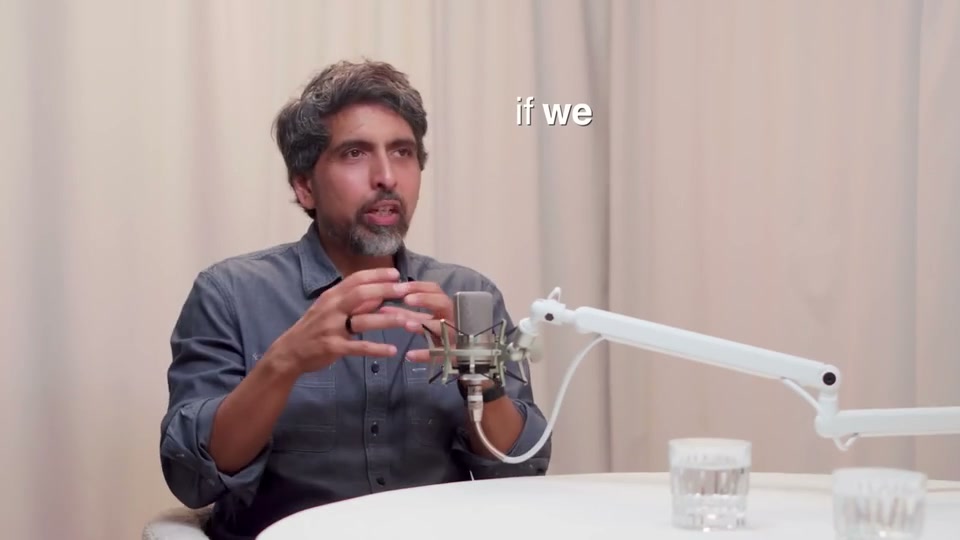
Your vertical clip
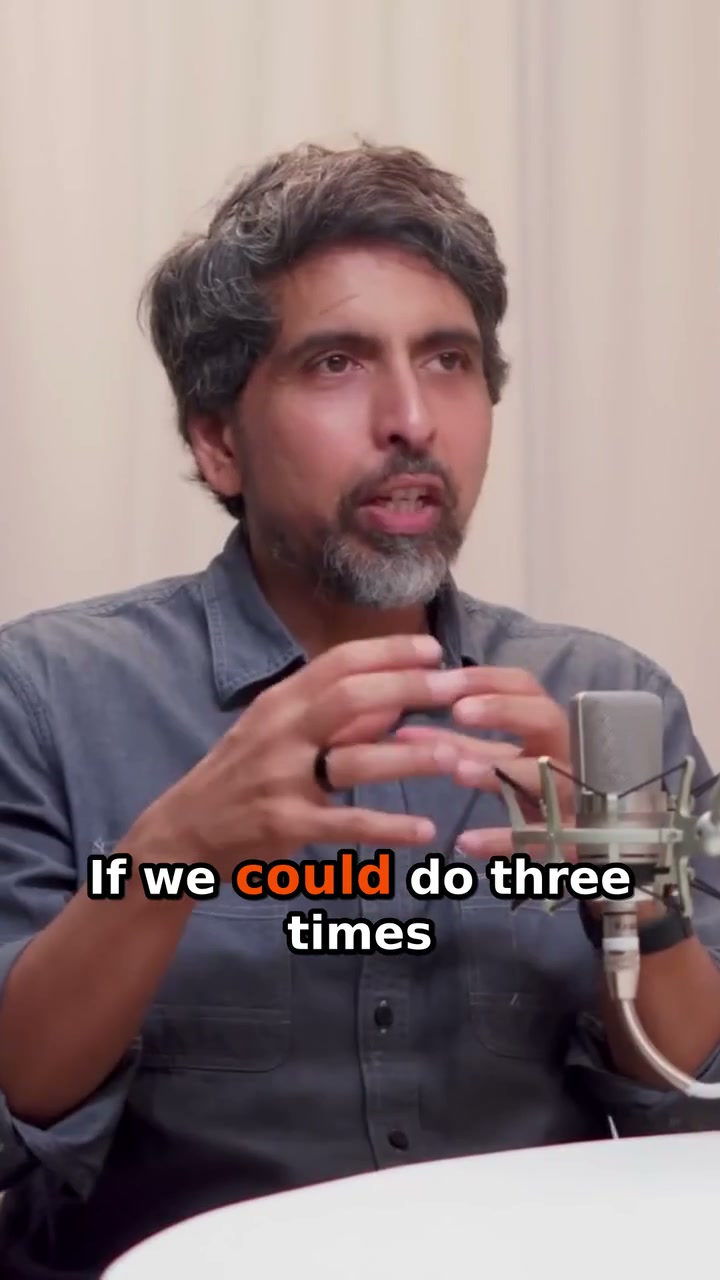
01
Upload a conversation with clear audio and visible speakers. Use footage you have permission to edit and share. Review the suggested moments for a clear opening and a complete thought.
02
Check the speaker-aware 9:16 crop, trim the boundaries and correct caption errors. Apply your caption style and preview the clip to make sure text and faces remain visible.
03
Download your finished clip, then upload it as a Reel through Instagram. Review the preview, cover, post caption and audience settings there. ClipSnitch does not publish or schedule directly to Instagram.
When you manage a podcast or creator’s channel, review the story and brand before handing over the exported file. Use this checklist alongside the clip editor and your own approval process.
Record the episode or recording name and the moment you selected. Check who is speaking, what question they are answering and whether the cut changes the meaning. Include the setup when a joke or political comment depends on it.
Verify speaker names and specialist terms against the audio. Apply the agreed caption style, then preview the full vertical crop at phone size. Use saved templates as a starting point and check each export individually.
Share the finished file through your usual approval process. Keep the proposed Instagram post caption with it and confirm who will upload it. Downloading from ClipSnitch does not mean the Reel has been approved or published.
A FINAL CHECK, BEFORE YOU POST
Review the vertical crop before it reaches your audience.
Reuse caption styles and colors from your saved templates.
Plan YouTube posts in your calendar with an eligible paid plan.
It prepares short clips from a recording you supply. It selects potential moments, reframes them vertically and adds editable captions. It doesn’t create footage, images, voices or music with AI. Each clip is cut from your recording; anything else in it, like stock B-roll, music or a logo, is something you chose to add.
Yes. Start with a video podcast or interview with visible speakers. Check each suggestion for context and correct the captions before downloading.
You can process recordings you have permission to use, reuse saved caption styles and download the finished clips. Check names, branding and the client’s approval before sharing the finished file.
No. Download the clip and upload it through Instagram. Direct publishing and scheduling in ClipSnitch are available for YouTube and LinkedIn on eligible paid plans.
A Free plan is available with a monthly source-video minute allowance, watermarked exports and limited retention. Check Pricing for the current limits.
For an interview, try an answer that includes the question’s context. For a lesson, choose one explanation or worked example. For a comedy conversation, keep enough setup for the punchline to make sense. Watch the full cut before posting; AI selection does not guarantee reach.
No. ClipSnitch’s captions display the spoken words on the video. Write the Instagram post caption separately when uploading, adding any context viewers need about the episode, lesson or speaker.
Choosing your workflow? Compare AI clipping tools before your first project.