ClipSnitch walkthrough
How to create YouTube Shorts from an existing video
Start with a conversation you have already recorded. This walkthrough shows how to find a self-contained moment, prepare a vertical clip and review it before sharing with ClipSnitch.
By ClipSnitch · Reviewed · Check current plans and limits
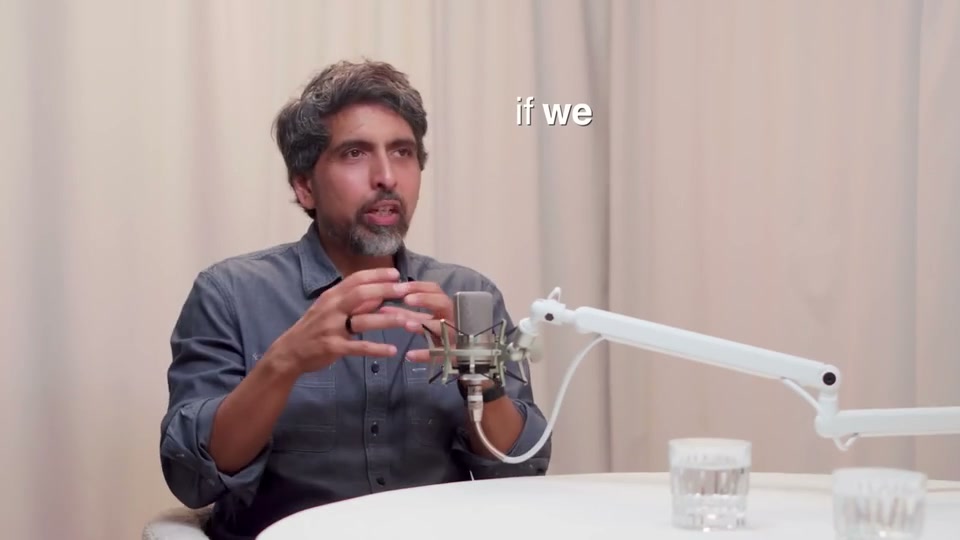
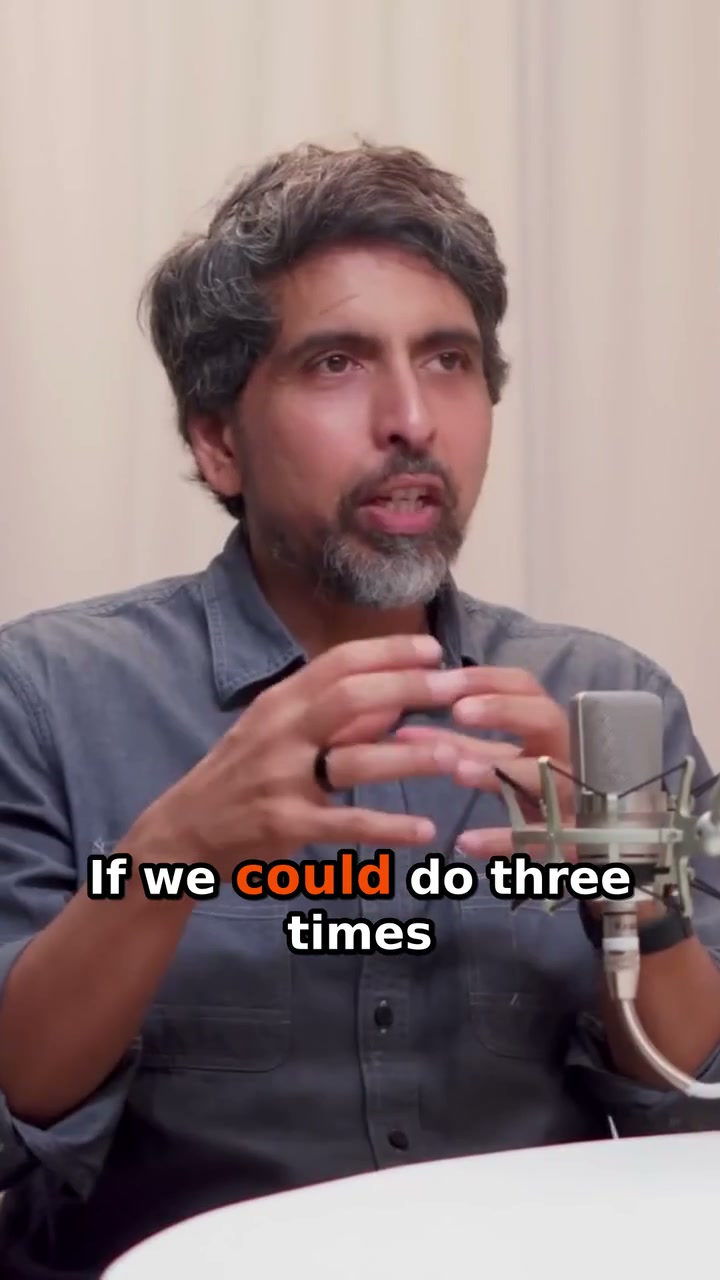
What to check in this interview example
- Framing: keep the person and the gesture
- The landscape frame includes the table and microphone arm. The portrait crop brings the speaker’s face and hands closer. Watch the full clip to check that hand movements and speaker changes stay inside the frame.
- Captions: readable words, enough context
- The portrait sample uses outlined text with an orange word highlight below the face. Check readability at phone size and listen for transcription errors. The text shown here starts a conditional thought; this still image alone cannot establish whether the complete clip makes sense.
- Editorial choice: finish the idea
- Review the opening and ending against the original recording. Include the question or setup when an answer depends on it, and keep enough of the ending to complete the point. A visually clean crop does not replace that review.
These are editorial observations about the displayed sample, not measured engagement results or a customer endorsement.
1. Choose a recording you can use
Use your own video or footage you have permission to process and publish. Podcasts, interviews, lessons and talks with clear audio and visible speakers are a good starting point. Choose a moment that makes sense without the rest of the recording.
2. Import the source video
Upload the recording or use the supported YouTube-link import in your workspace. Processing uses the duration of the source video, rather than the number of finished clips. Check your available minutes before importing a long recording.
3. Review the suggested moments
Watch the AI-selected clips and use the scores as a starting point, not a promise of views. Keep a moment with a clear opening and a complete thought. Trim the start and end if a sentence needs more context or the clip contains unnecessary pauses.
4. Check the vertical framing
Review the 9:16 crop in the editor. Watch speaker changes and make sure the person speaking stays visible. Adjust the framing when needed, then preview the full clip rather than judging a single frame.
5. Correct and style the captions
Listen while reading the captions. Correct names, numbers and specialist terms. Choose readable styling and check that the words do not obscure the speaker. Save a brand template if you want to reuse your caption style.
6. Download or publish the finished clip
Preview your final edit, then download the clip to upload yourself. Direct YouTube publishing and scheduling require a connected channel and an eligible paid plan. Review the title, description and publishing settings before submitting.
Common questions
How do I cut a video clip from YouTube?
Import a link to a YouTube video you own or have permission to use, review a suggested moment and trim its boundaries in the editor. Check the vertical crop and captions before downloading. If import fails, use a supported source file you are entitled to process.
Can I make Shorts from a video I already uploaded to YouTube?
Use the supported YouTube-link import for a recording you have permission to process. If the link cannot be imported, upload a supported source file you are entitled to use.
Does AI create new footage for this workflow?
No. ClipSnitch prepares shorter clips from an existing recording. You review the moments, crop and captions before sharing.
Can I try it free?
A Free plan is available with a monthly minute allowance, watermarked exports and limited project retention. Check Pricing for the current limits. Publishing and scheduling directly to YouTube are paid features.
Try the workflow with your recording
Review the output before sharing. See the full workflow or explore YouTube Shorts creation.