01
Bring the conversation
Upload your video podcast or interview. Clear speech and visible speakers give you a better starting point.
FOR PODCASTS & INTERVIEWS
Turn a long conversation into short clips that stand on their own. ClipSnitch suggests the moments, follows the speaker, and prepares captions. You decide what makes the cut.
MP4, MOV, MKV or WebM · landscape, square or upright (9:16) videos
Free plan available. YouTube publishing and scheduling are paid features. See plans and free allowance
The conversation
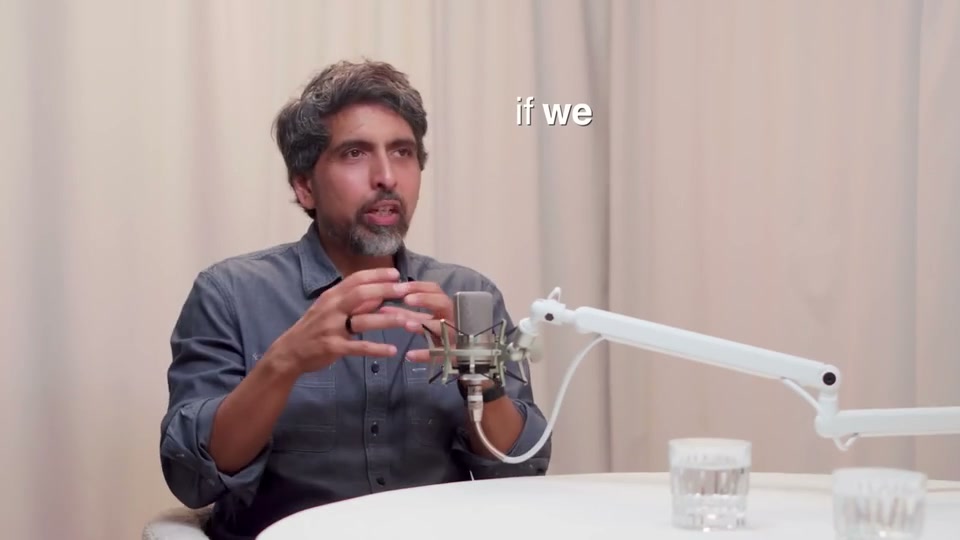
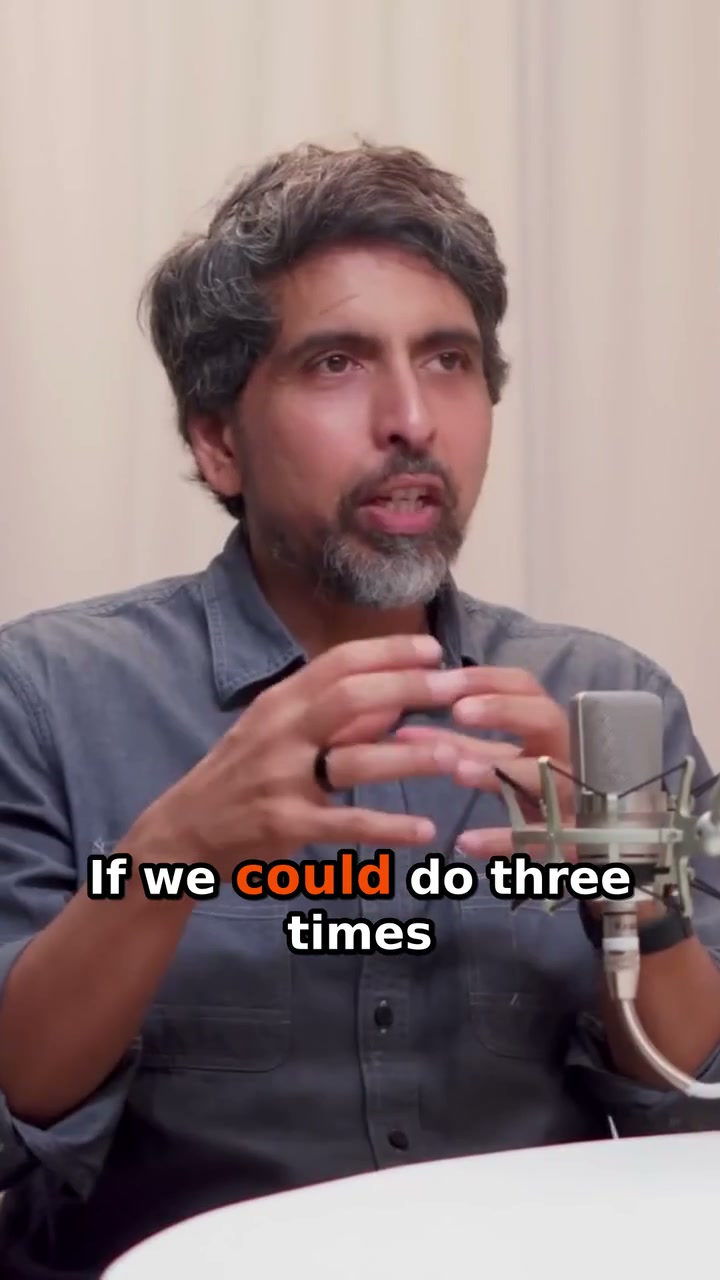
Your vertical clip
01
Upload your video podcast or interview. Clear speech and visible speakers give you a better starting point.
02
Watch the AI-selected moments and use their scores as a guide. Choose clips with enough context, a clear point, and a natural ending.
03
Trim the edges and check speaker changes in the vertical crop. Correct names and specialist terms in the captions, then apply your saved brand style. Download for social media, or publish and schedule to YouTube on a paid plan.
A clip is heard by people who haven’t heard the episode. These three checks matter more than any setting.
Cut the warm-up. Begin on the sentence that sets up the idea, so the first seconds tell a stranger what the clip is about.
A single story, answer or opinion is easier to follow than a summary of the episode. Two good ideas make two clips.
Put the guest’s name in the title or first caption, and keep the speaker in frame. Correct names and specialist terms in the captions before you share.
Get the episode as timestamped text for show notes, quotes and an accessible text version.
Upload the whole episode with an SRT caption file, or download it with the captions in the picture.
Reduce steady background noise in your browser before you publish or clip.
The episode's summary, key points and timestamps, ready for its YouTube or podcast description.
A FINAL CHECK, BEFORE YOU POST
Review the vertical crop before it reaches your audience.
Reuse caption styles and colors from your saved templates.
Plan YouTube posts in your calendar with an eligible paid plan.
It finds potential highlights in a recorded video podcast and prepares shorter clips. ClipSnitch combines moment selection, speaker-aware reframing, and captions so you can review and refine the result before posting.
Start with a video podcast, interview, or panel with clear speech and visible speakers. Results depend on your recording. Review each suggestion before publishing.
You have the final say. AI scores help you review a shortlist; they do not guarantee views or replace your knowledge of the audience.
Yes. Save caption styles and colors as a brand template and reuse them across projects.
You can download clips to upload elsewhere. Direct YouTube publishing and scheduling require an eligible paid plan and a connected account.
Your source-video duration uses your monthly minute allowance, rather than the number of clips you keep. See Pricing for current allowances, watermark details, and retention terms.
Yes. In the editor, turn on Color by speaker under Captions → Style and each speaker's captions get their own colour, while the highlighted word keeps its accent. You can name the speakers, for example Host and Guest, and the names also appear in the episode's transcript and its downloads.
Yes. The episode's full transcript has a Chapters & show notes card: a short summary, key points and chapters with timestamps, ready to paste into a YouTube or podcast episode description.
Choosing your workflow? Compare AI clipping tools before your first project.